 Skip to content

Palenque Vendor Onboarding Guide
Follow these steps after registering as a vendor to complete your account, store, pickup location, verification, payout method, and operating hours.
Pre-launch notice: Account access and product preparation do not authorize live selling. Wait for Palenque confirmation.
Prepare your first product
Already registered? Use the product guide to prepare one product for review, or ask for help with your product list and photos.
Add your first product for review | Get help preparing your products
The assistance form sends a setup request; it does not instantly add products to your catalog. The verification, payout, and activation requirements below still apply.
1 Sign in and open your dashboard
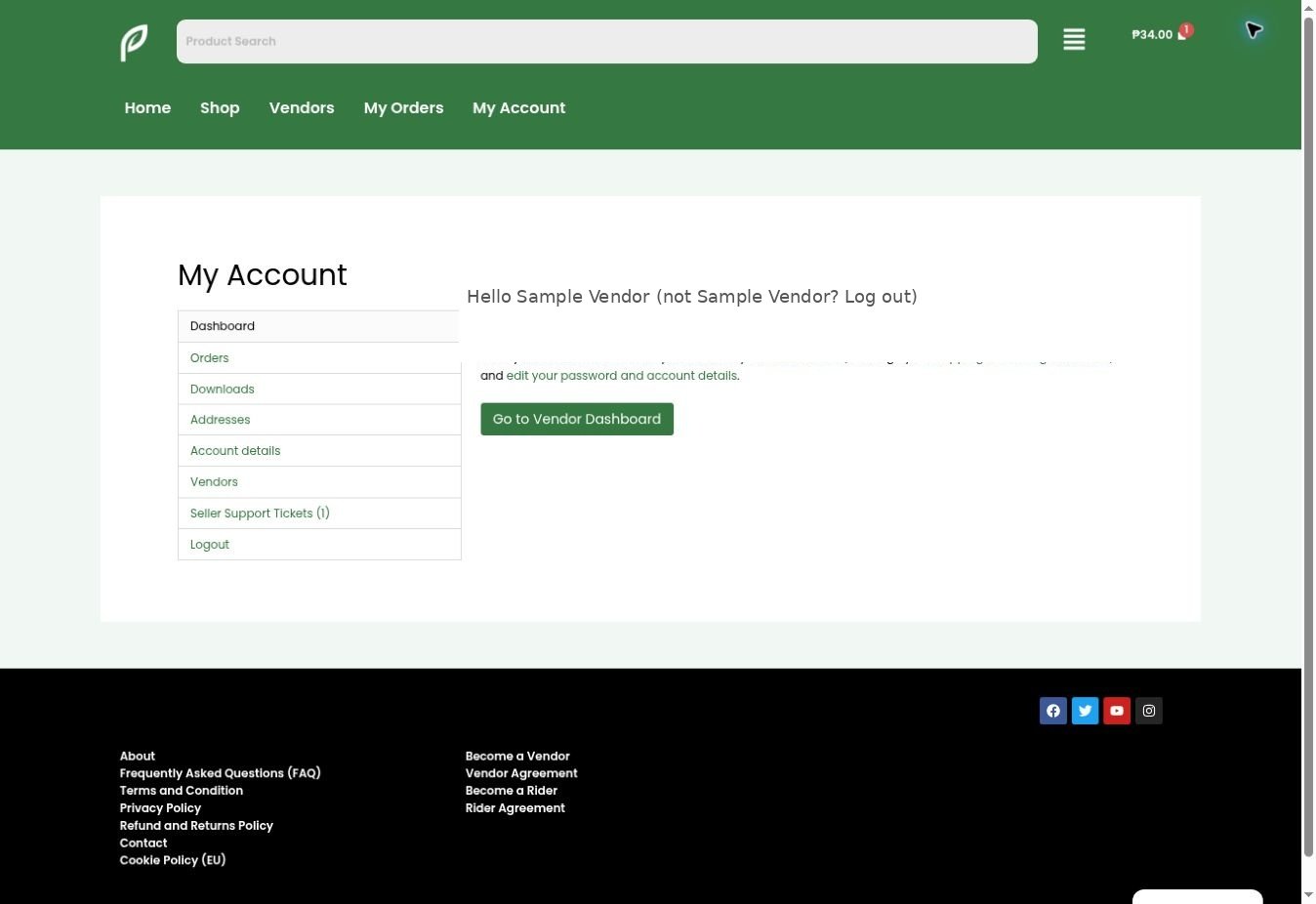
Open palenqueph.com/my-account/, sign in, and select Go to Vendor Dashboard.
2 Complete your store profile
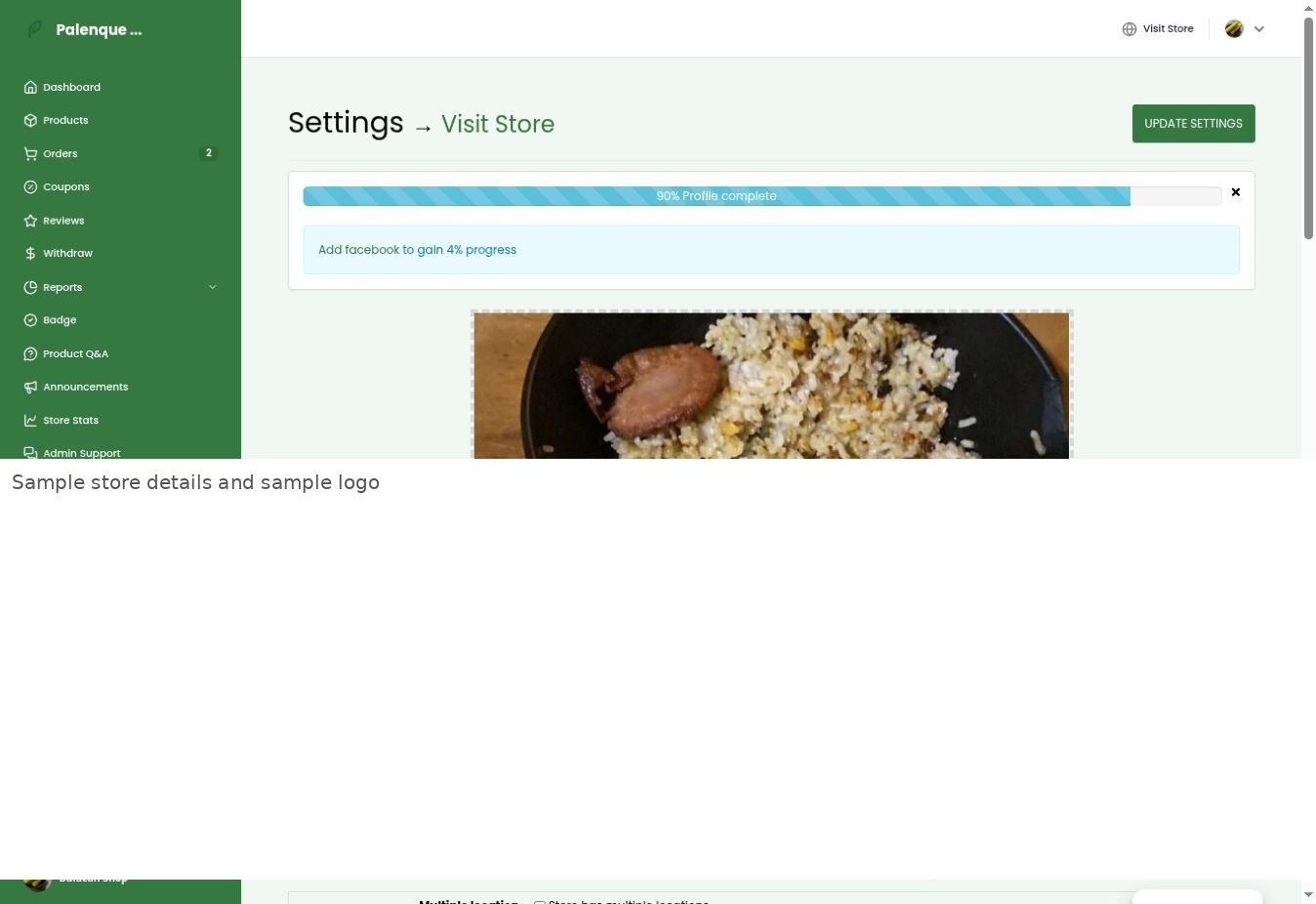
Open Settings → Store. Add your store banner, profile picture or logo, store name, categories, phone number, and a short biography. Select Update Settings.
3 Set your pickup address and pin
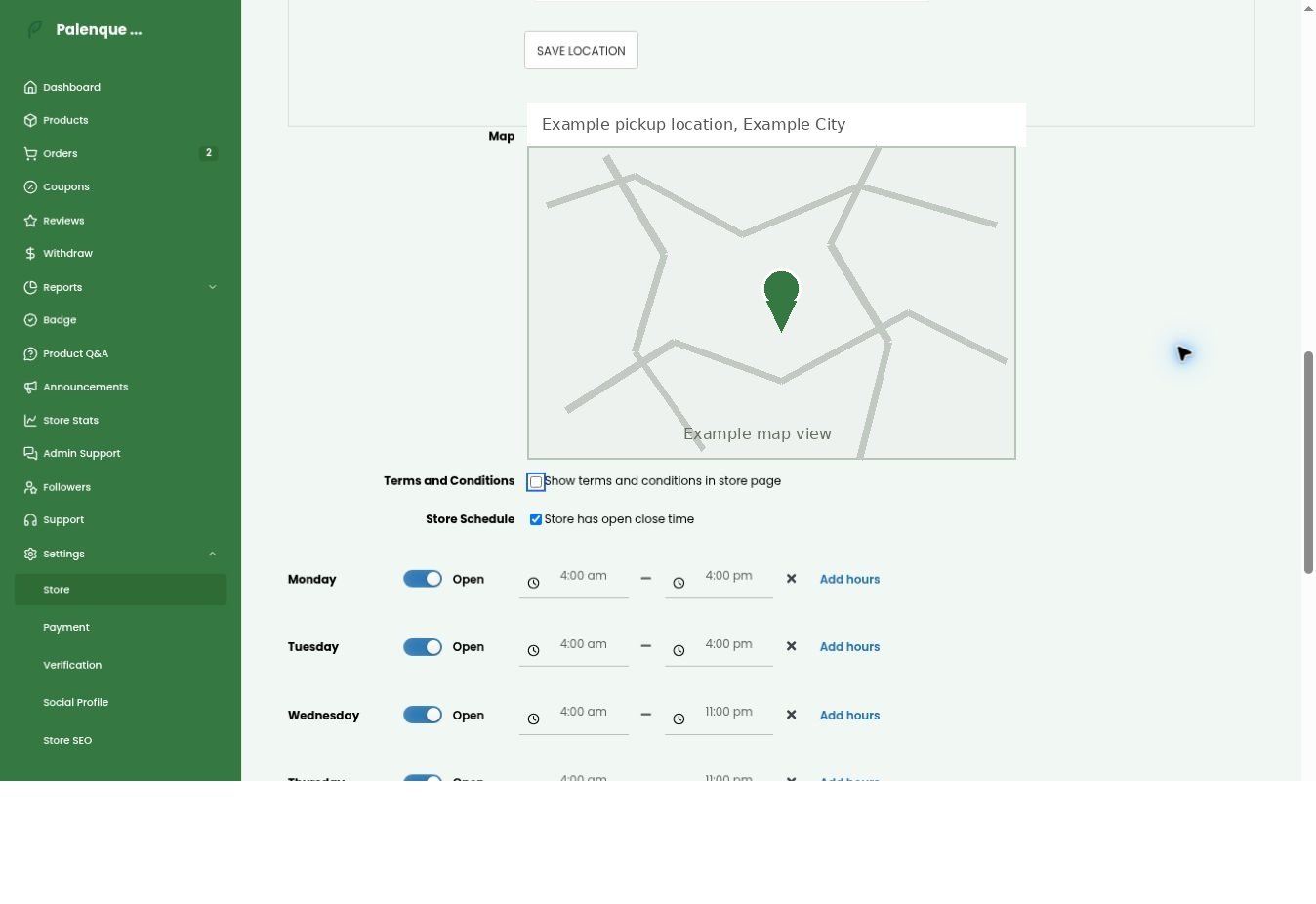
Enter the location where riders will collect orders. Complete the address fields, select Save Location, use the map search, and confirm that the pin identifies your actual pickup entrance or stall.
4 Submit verification documents
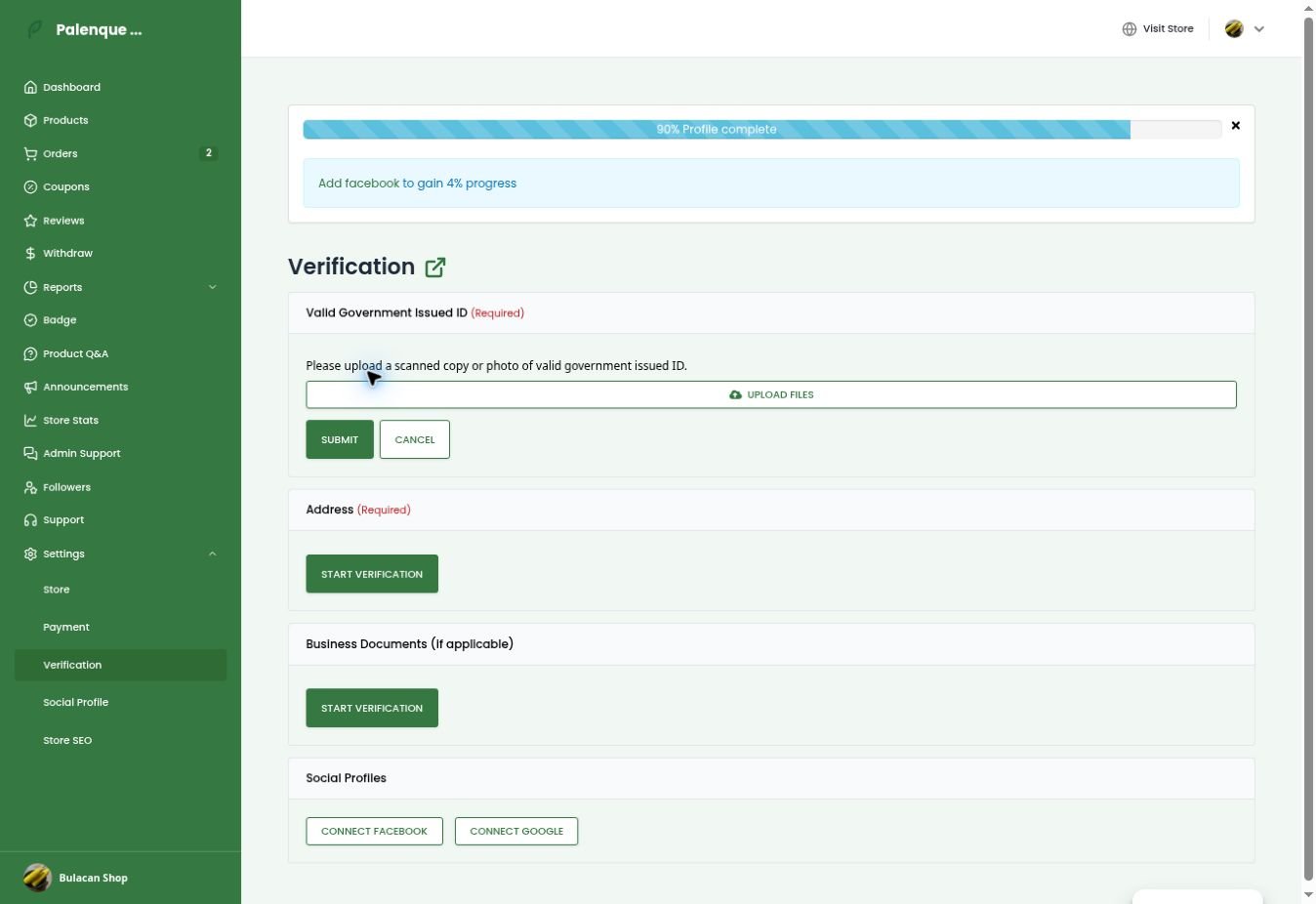
Open Settings → Verification. Submit a clear valid government-issued ID and address proof. Submit business documents when applicable or requested.
5 Set your withdrawal method
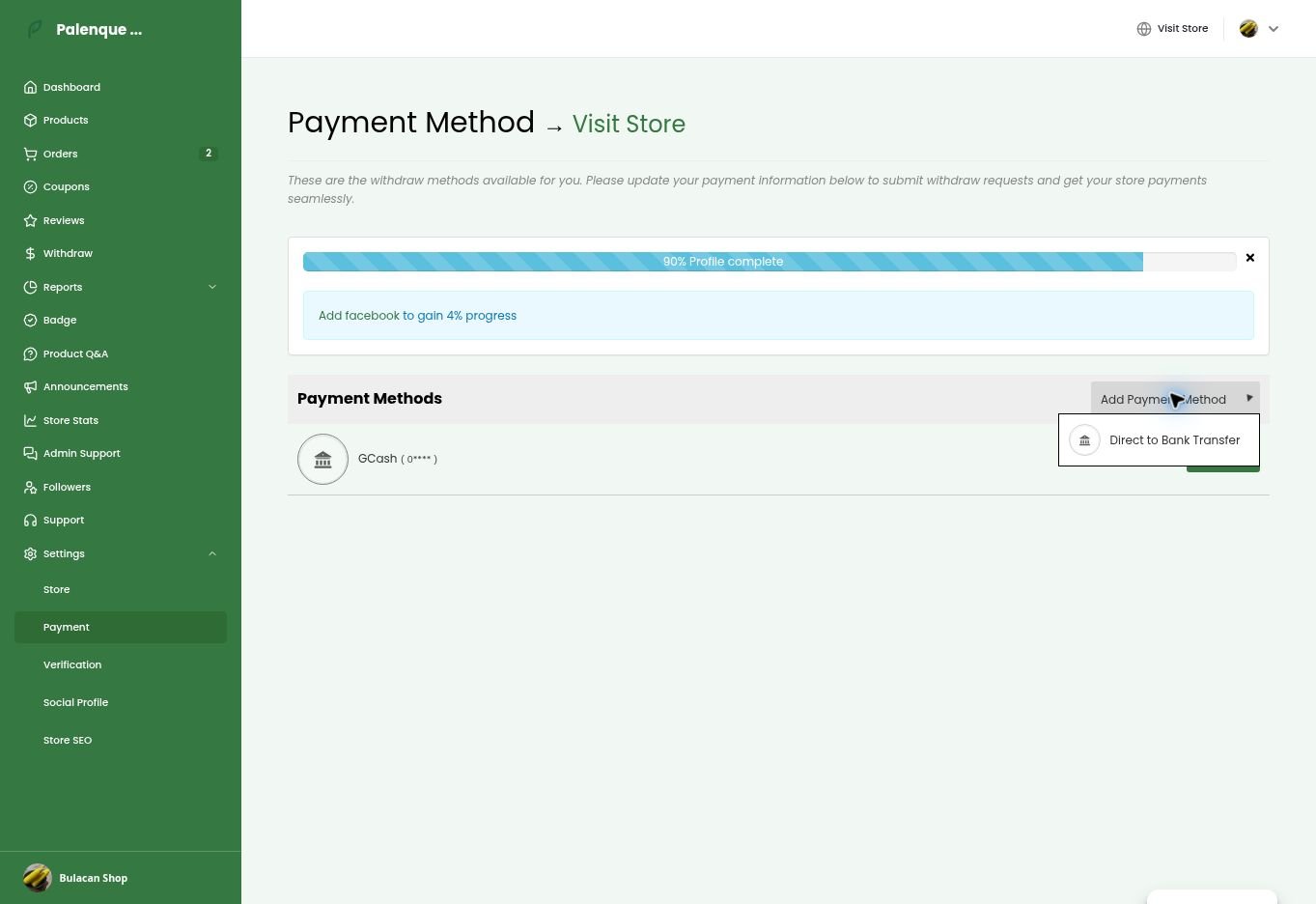
Open Settings → Payment. Add or manage GCash or direct bank transfer. Recheck all details before saving.
6 Complete bank account details
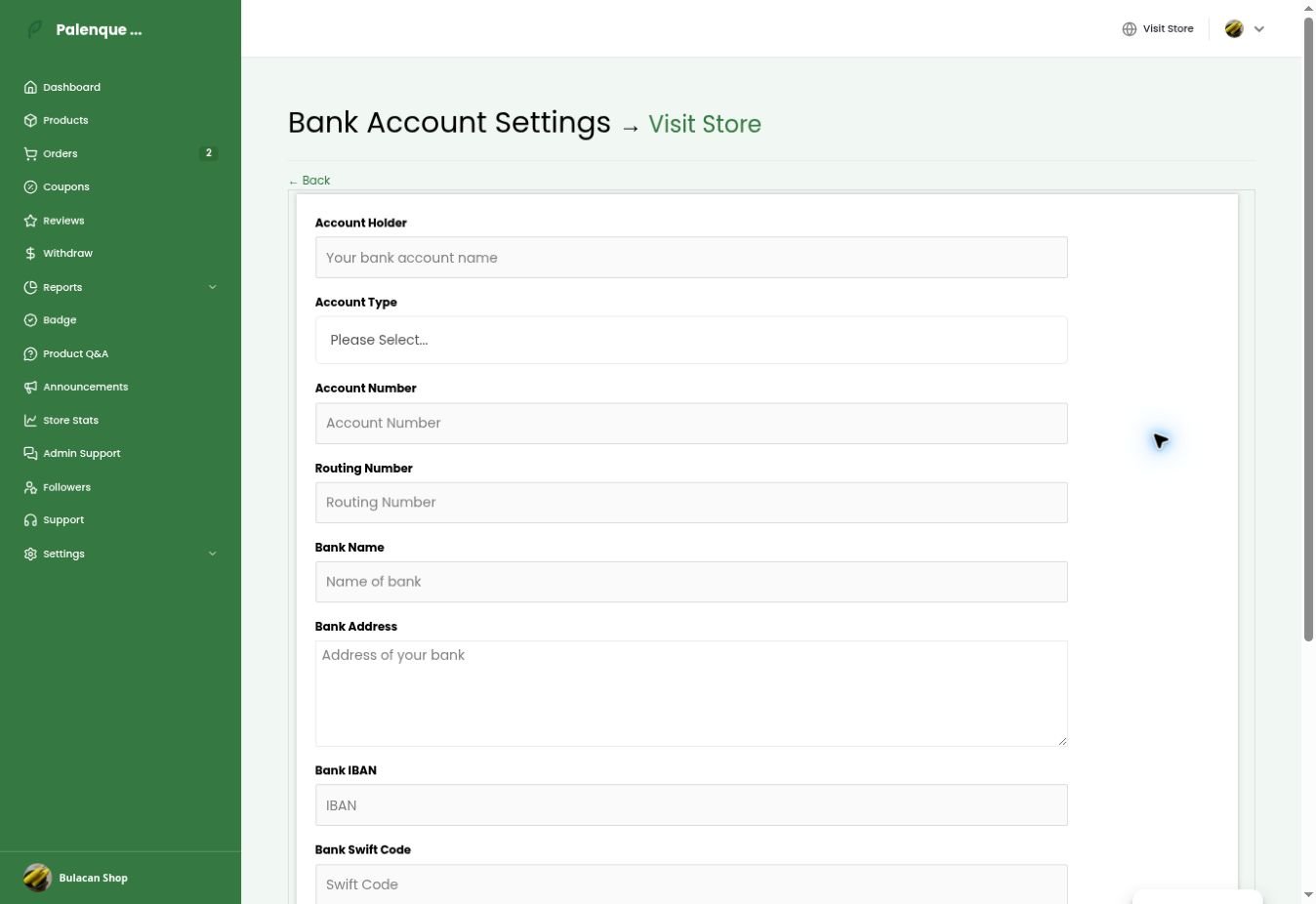
For bank transfer, enter the account holder, account type, account number, bank name, and other fields only when applicable. Never invent routing, IBAN, or SWIFT information.
7 Set your operating hours
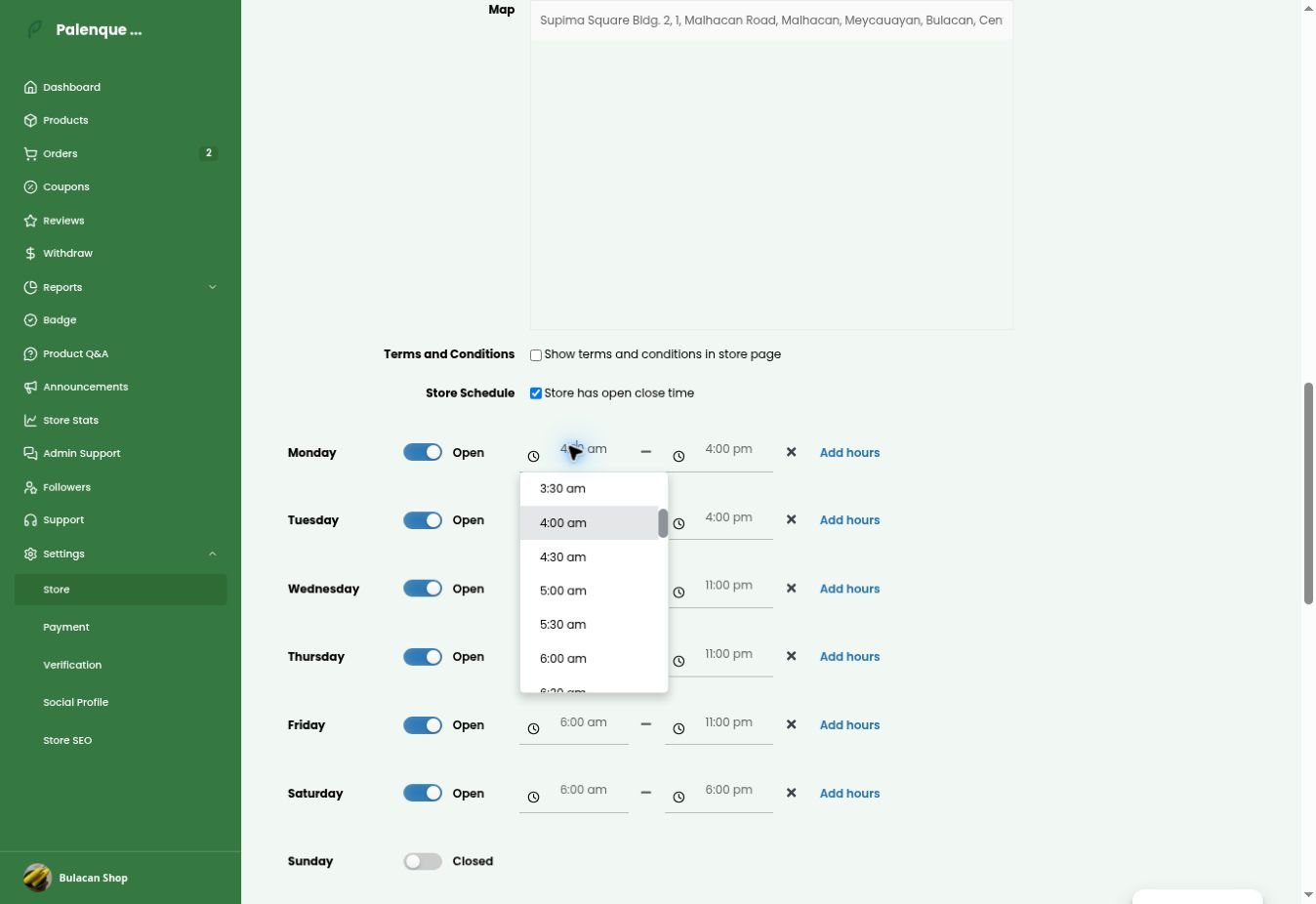
In Settings → Store, configure opening and closing times, mark non-trading days Closed, and add notices when needed.
8 Review before activation
- Account and contact details are correct.
- Store name, category, images, and biography are ready.
- Pickup address and pin are confirmed.
- Required ID and address proof are submitted.
- Applicable business documents and agreement steps are complete.
- GCash or bank payout details are double-checked.
- Operating hours match your availability.
- Products have accurate photos, prices, selling units, descriptions, and stock.
- The Palenque Team has confirmed activation.
Need help?
Contact support@palenqueph.com. Never share your password, one-time code, or wallet PIN.