 Skip to content

Vendor Product Upload Guide
Use this guide to prepare product information, upload photos, set pricing and stock, and submit products for review. Product preparation does not authorize live selling.
Start with one product
Have a clear photo, product name, selling unit, price, description, and stock information ready. Sign in, select Go to Vendor Dashboard, then open Products and follow the steps below.
Add your first product for review | Get help preparing your products
The assistance form sends a setup request; it does not instantly add products to your catalog. Confirm final product details and prices before launch.
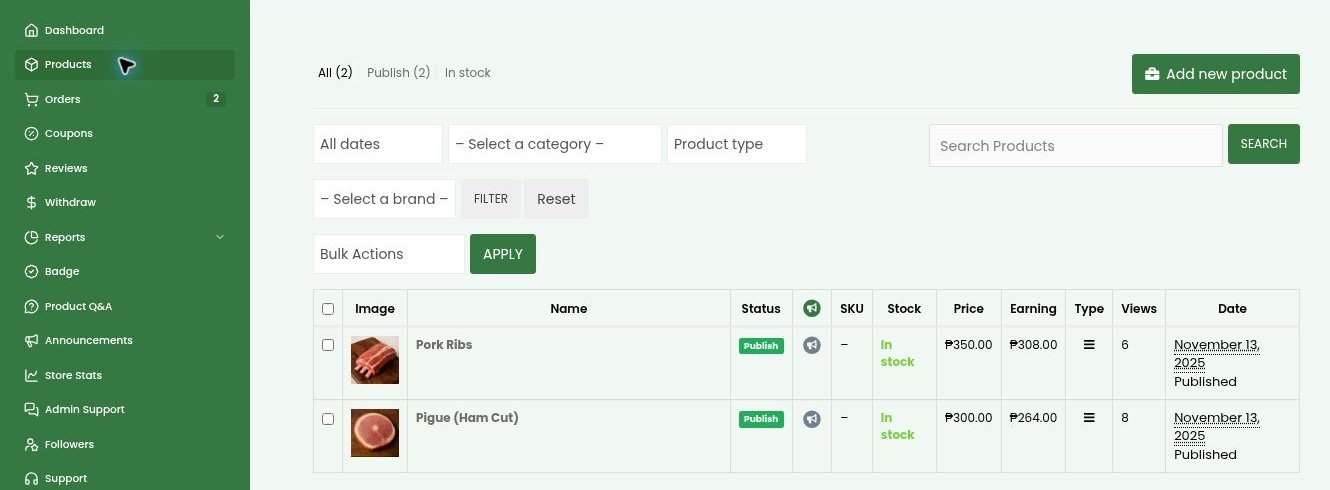
1 Open Products
Sign in at palenqueph.com/my-account/, select Go to Vendor Dashboard, then open Products. Search first to avoid duplicates.
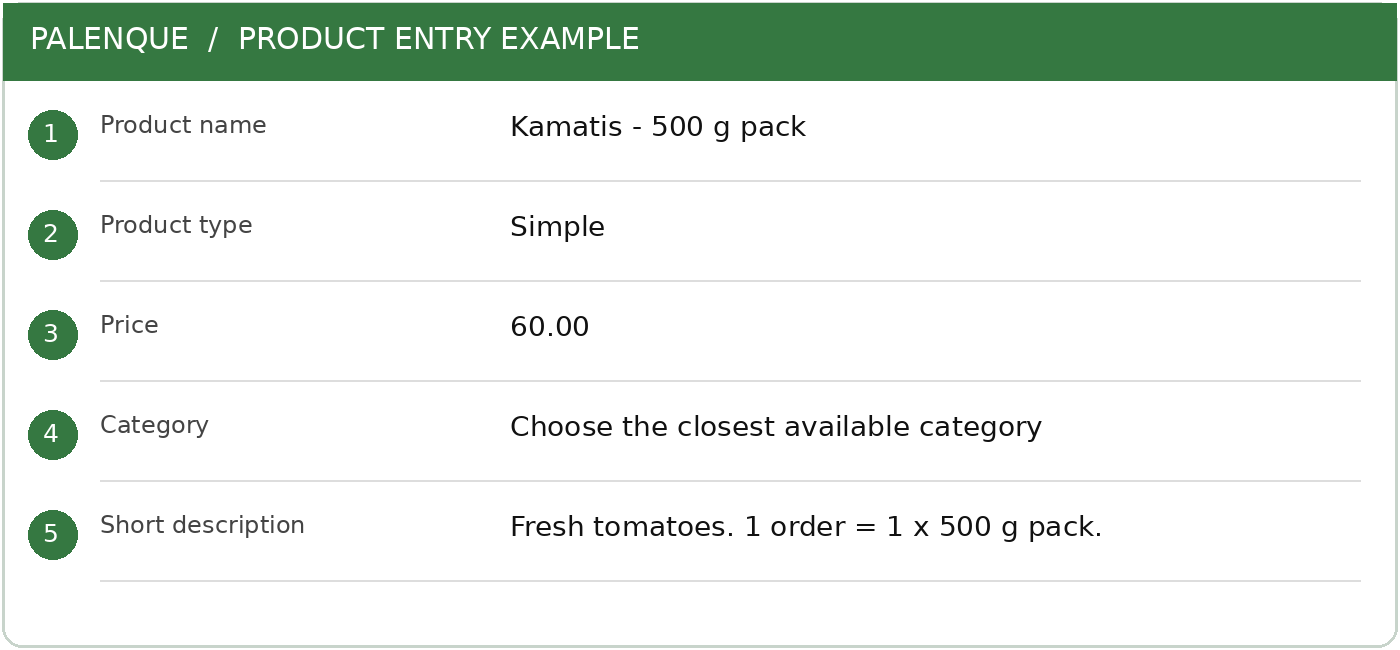
2 Enter basic details
Enter the product title and selling unit, choose Product Type and Category, set the customer price, and select the correct brand and tags when applicable.
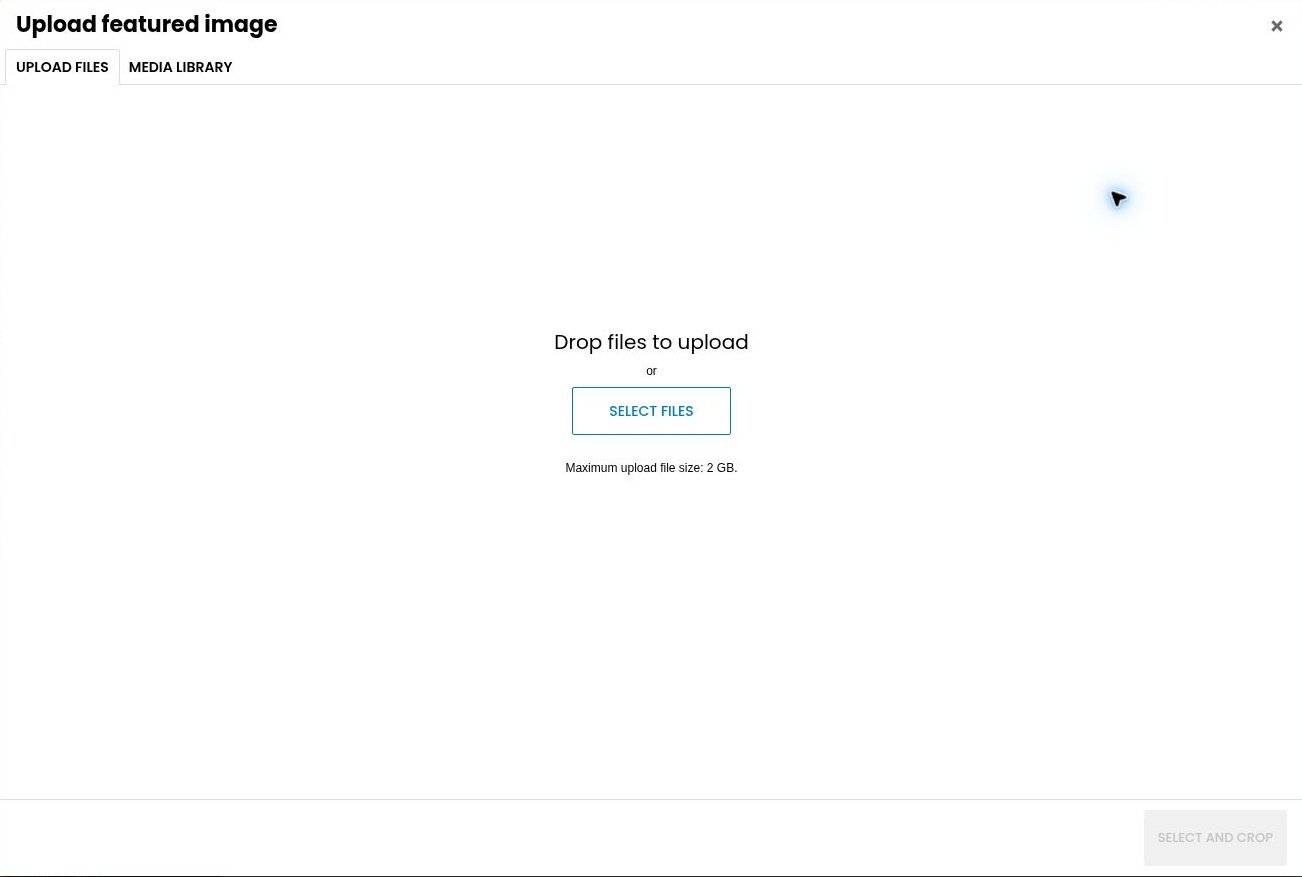
3 Upload the product photo
Select Upload a product cover image, choose a clear JPG or PNG, select and crop it if prompted, and confirm it appears in the form.
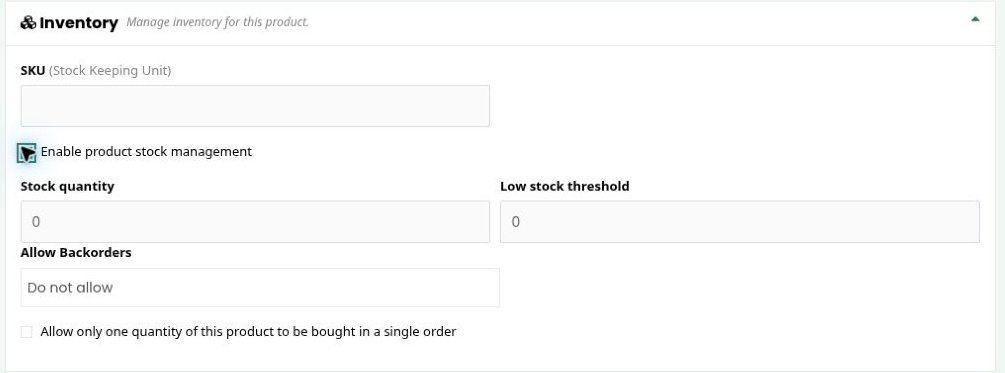
4 Add description and stock
Explain exactly what one order contains. Enable stock management when needed and enter the number of available selling units.
5 Save for review
Check the title, photo, description, selling unit, price, category, and stock. Keep Product Status as Pending Review, then select Save Product.

Need assistance?
Use the Vendor Product Submission and Assistance Form if you need help setting up your store or uploading products. Never submit passwords, one-time codes, wallet PINs, or unnecessary private documents.